

Users
Administration → Users.
User list
Columns: a password-set indicator, Username, First Name, Last Name, Acronym, Active, Lifecycle (only populated for users pending deletion — see below), Email.
Filters:
- Search across username, email, first/last name
- Show recycle bin — a toggle (with a count badge) that reveals users pending deletion. Those rows carry a Lifecycle badge — Recycle bin (an admin scheduled it) or Self-deletion (the user did) — plus the deletion deadline. See recycle bin & permanent erase below.
Double-click a row to open the detail dialog. Right-click a row for a context menu with Set Password, Send Magic Link, Show IdP Claims, and the recycle-bin actions described below.
Creating a user
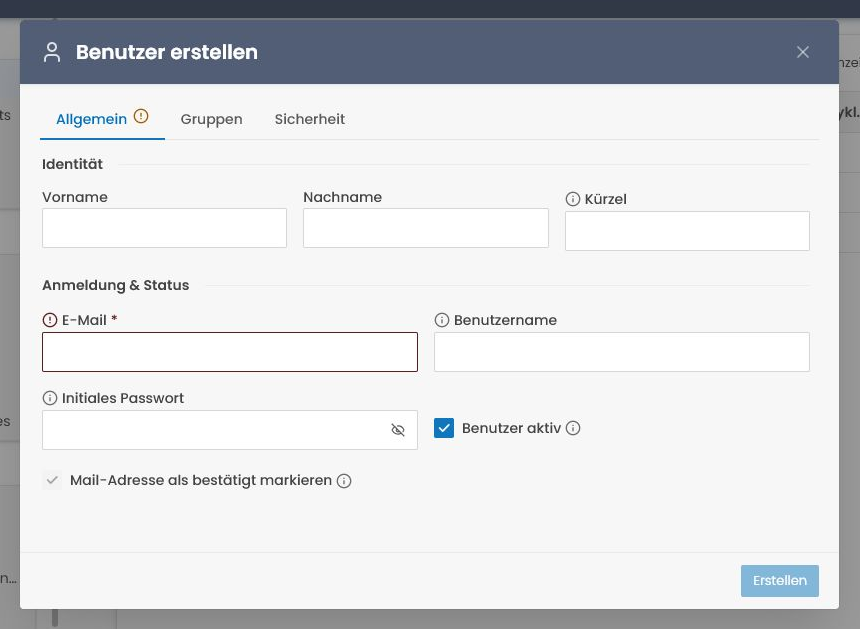
Create button at the top right.
Required:
- Username (unique, lower-case recommended)
Optional but recommended:
- First name, Last name
- Email — unique per realm; without it, magic links and reset emails are impossible. An address is freed for reuse only once its previous owner is permanently erased (see recycle bin & permanent erase).
Required fields can be stricter
Email is always required. Whether Username, First name and Last name are optional or required is controlled by the realm's (or per-App's) Registration Fields policy — the same policy that governs self-registration also applies here, so an admin creating a user is held to the same requirements.
Initial password vs. magic link
Two ways to give a new user their first access:
- Set an initial password — type a temporary password and share it with the user via a secure channel. They change it on first login.
- Send a sign-in link — Modgud emails a one-time magic link. The user clicks it, lands logged in, sets their own password.
Option 2 is more convenient and safer — no cleartext password travels through chat or email.
The user dialog
Tabs:
General
Master data: first name, last name, acronym, email, username, active flag, and (once an email is set) an email-verified override.
Changing email as admin
If you change the email directly as an admin, it takes effect immediately — no double-opt-in. Make sure the address is correct, otherwise you lock the user out (reset links would go to the wrong address).
If the user changes their email themselves, double-opt-in to the new address kicks in automatically — see Profile.
Direct Groups
Assignment to groups the user is a manual, direct member of. Group membership determines roles and therefore permissions.
Adding a user to, or removing them from, a group that confers realm:admin (through its own roles or a parent group) requires a realm administrator. This applies here, when creating a user with initial groups, and in the group editor. user:write alone gets 403 Group.RealmAdminMembershipForbidden.
Effective
Read-only view of every group the user effectively belongs to — direct, inherited through group nesting, and auto-computed by membership scripts — with a badge showing how each one was reached.
Security
Overview of the user's 2FA status:
- 2FA status — a badge showing which methods are active, whether the user is exempt, or that 2FA isn't configured yet.
- Grace period (when an App requires multi-factor but the user has no second factor yet) — days remaining before enforcement kicks in (the realm's or App's setup grace), with Reset grace and Force immediate enforcement actions.
- Individual policy override — a per-user grace-period-days override, and a checkbox to exempt this user from the 2FA requirement entirely (for service-style accounts or migrated legacy users). Use sparingly; changes here are audited. The policy is configuration: for a realm admin it saves onto the draft with the rest of the form (and travels in a manifest as
GracePeriodDaysOverride/TwoFactorExempt), while the two grace-clock buttons above act at once.
Actions that live elsewhere but affect the same user: Set password and Send Magic Link are right-click actions on the user list (see User list above), not fields inside this tab.
Test account
Only with the permission user:test-account. The checkbox This is a test account sits on the General tab; a test account then gets its own Test account tab: the applied fixed e-mail code (expiry, last use), a code already staged in the draft, a Generate button, the validity in days, and Remove the fixed code. Like the rest of the dialog, it saves onto the draft for a realm admin; the code goes into the draft's encrypted secret store and is never shown again — write it down before saving. Removing the marker deletes the code. The user list marks a test account with a flask icon next to its username.
Viewing a linked external identity's claims
Right-click a user on the list → Show IdP Claims opens a standalone panel with the raw and mapped claims from that user's most recent external (OIDC/SAML) login. Useful for debugging when SSO-side fields are missing or wrong.
Sessions
Modgud tracks sign-in sessions per user (device, browser, IP, last activity), but today there is no admin-UI surface to list or end another user's sessions — that view only exists for end users managing their own sessions, under Profile → Sessions (see Profile). If you need to force a user out of all their sessions as an admin today, deactivating the account (see below) revokes live access — as soon as the change lands, which for a realm admin is when the draft is applied.
Failed sign-ins
Repeated wrong passwords no longer lock the account for everyone. Failures are counted per browser: a browser that completed a sign-in for the user before has its own allowance (default 10 per 15 minutes), every other client shares the user's untrusted pool (default 5 per 15 minutes). An exhausted pool refuses further attempts from unfamiliar clients only — the user's own devices keep working — and the user receives one e-mail per window with a sign-in link that also trusts the device. Nothing clears itself except time, and no admin action is needed; the limits are realm settings (see Rate limits). An explicit admin lock on the account (deactivation) is a separate action and still blocks every sign-in.
Recycle bin & permanent erase
Deleting a user is reversible until it isn't. Instead of an immediate hard delete, Modgud moves the account to a recycle bin: it is deactivated and scheduled for permanent erasure after a retention window, during which you can restore it. Only the final erase is irreversible. The retention window and auto-purge behaviour are configured per realm under Realm Settings → Account Deletion.
This is the same lifecycle a user enters when they delete their own account — the difference is the initiator (and that a self-deleting user stays able to sign in to cancel, whereas an admin-binned user is deactivated).
Move to the recycle bin
List → right-click an active user → Delete (recycle bin).
Effect:
- The account is deactivated — it can no longer sign in.
- It is scheduled for permanent erasure at the end of the realm's admin-retention window.
- Live access is revoked (sessions end, tokens stop working). The record, its email, and its external identity links are kept so a clean restore is possible — the deactivation alone blocks any login (including through a linked IdP). No PII is masked at this stage; that happens only at permanent erase.
- Its profile is frozen (read-only) while pending — restore it first to edit again. This includes the active switch: a pending account cannot be reactivated except by Restore.
- The email address stays reserved (no one else can register it) until the account is permanently erased.
Reveal pending users with the Show recycle bin toggle on the list. Their Lifecycle badge reads Recycle bin (admin-initiated) or Self-deletion (the user requested it), with the deadline.
Deleting a user who already has a pending Self-deletion still cuts the account off — it is deactivated and its live access is revoked — but the user's own request and erasure date stay as they are, so the account is still erased on that date. A Restore reactivates it.
Restore
Show recycle bin → right-click the pending user → Restore.
The pending deletion is cancelled and the account is reactivated. An admin can restore either kind of pending deletion — including cancelling a user's own self-service deletion as a support escape hatch.
Username & email must still be free
If someone registered the same username or email in the meantime, the restore fails — resolve the conflict first.
Delete permanently (force-delete)
Show recycle bin → right-click the pending user → Delete permanently. You're asked for a reason (kept with the account's deletion record) and a final confirmation. The Security log records every permanent erase as account.erased — who erased which account, and whether it was a manual erase, the recycle-bin auto-purge or an expired self-deletion — but not the free-text reason, since Security events carry no free text. This empties the recycle bin for that user now, ahead of the retention deadline.
If auto-purge is enabled for the realm (default), a scheduled job erases recycle-bin accounts automatically once their retention window elapses — so you don't have to empty the bin by hand.
Final — no restore
Permanent erase is the actual deletion under GDPR Article 17 ("right to be forgotten"). There is no going back.
What happens technically:
- All PII fields (name, email, phone, profile name) are replaced by markers (
***ERASED***) in events — Marten's built-in GDPR mechanism. - The event stream is archived so derived views no longer see the user.
- External identity links are scrubbed too — both links the user still has connected and any they had disconnected (their PII is found via the user's own stream and masked), so no IdP-linkage data survives the erase.
- Copies of the name elsewhere go too: the admin inbox items about the user's change requests (which name the requester) and the inbox items addressed to the user are removed from the inbox, their parameters masked and their streams archived; the uploader name on the user's assets and the publisher name on page and composition revisions they published are cleared.
- The user record is flagged deleted and its email is nulled — which releases the email for reuse.
- The auth log keeps the user ID for correlation but no cleartext PII.
When to use force-delete instead of letting auto-purge run:
- A GDPR erasure request that must be honoured immediately.
- Freeing a reserved username or email address right away.
- Data cleanup after test or demo setups.
Deactivate is a separate action
Deactivate (General tab / Active flag) suspends an account indefinitely with no deletion intent and no timer — fully reversible, email kept. Delete is the stronger action that includes deactivation plus a countdown to erasure.
Editing a user's profile on their behalf
If a user can't get in themselves, you can adjust their master data on the General tab. These changes bypass the approval flow (if enabled) and the email double-opt-in — be careful.
Audit
Every admin action against a user is recorded in the auth log as an admin action with your admin name.